How to run multiple Claude Code or Codex agents in parallel against a single codebase
With all of the agents working against the same codebase helps you get stuff done in parallel: maximum throughput!
There are many new tools in the AI ecosystem that leverage AI to write and generate applications and projects at a very rapid pace. Until a few months ago, my trusty VSCode was where I spent most of my time writing code, but over time I slowly became more of a code reviewer for my AI tools than an author of day‑to‑day code.

And some of the tools are very, very good. On my macOS machine I enjoy apps like Codex Desktop, Conductor, Emdash, and recently Cursor released a v3 that seems to rival the first two. My main challenge: I often use all three operating systems: macOS for $DAYJOB, Linux for personal development (I’ve been experimenting with Bazzite a lot, which is a huge change for a Debian nerd like me), and Windows for gaming (although with recent changes to Microsoft’s OS, I’ve been using Windows less and less).
I wish any of these would ship a terminal version so you can run it over SSH and get full capabilities. But Anthropic has banned quite a few people for using third‑party tools, and although the Agent Context Protocol (ACP) is alive and well in editors like Zed (which I could’ve used, but they’ve had a longstanding issue with font rendering on 1080p monitors), I’m a bit skeptical that they won’t one day stop collaborating like this. ACP can be used to replace the UI (TUI?) of their client, which they’re trying to improve, but that could lead to more bans or those tools being discontinued or heavily restricted.
So, like that XKCD strip often reminds me, I considered building a solution myself: what if we could launch an application, similar to Codex Desktop or the others, that creates multiple git worktrees so I can work on several tasks in parallel?
Preventing the wheel reinvention
Before breaking sacred rules though, of not attempting to reinvent the wheel, I did the responsible thing and looked around. Although Google Search isn’t what it used to be in terms of quality, I found a few options in terms of tools that could provide similar benefits, but they all lacked one thing or another.
Concretely, I needed or wanted a few things:
- A Terminal UI: while I would’ve appreciated a standardized desktop app (and I still wonder if I should make one), the difference in rendering between macOS, Windows and Linux would’ve been not so great for me, so I think I would prefer a good Terminal UI
- Access to the raw, original CLI for each AI provider: direct, low‑level command‑line clients (e.g.,
claude,codex,opencode) so I can script and orchestrate agents consistently. Prefer official or well‑maintained wrappers with configurable endpoints, auth, timeouts, and verbose logging to aid debugging and reproducible runs. - The ability to run multiple agents in parallel, so I can have one agent working on one task, and another agent working on another task, all against the same codebase, without having to switch contexts or worry about conflicts.
- SSH compatibility: Although it might be a given on point 1, but it should play nice running via SSH (often, I leave my Linux machine with SSH on and connect from my macOS if I need to do any personal coding, although I barely use this, it is a nice-to-have).
- Support for tools popular in
claudeorcodexagents: Since there’s quite the ecosystem for some of the tools, hooks, skills, MCP servers and more, it would be nice to have support for those, so I can leverage the tools I already have in place and not worry about compatibility issues. This is a byproduct though of point 2, since if you can run the original CLI, you can also use all the tools that are compatible with it. - Session resume or a way to continue a previous session, so if I have to stop working on a task for a while, I can come back to it later and pick up where I left off without losing any context or progress.
- Stupidly enough, macros support or some sort of text expansion: I often find myself writing the same prompts over and over again, and it would be nice to have a way to define macros or snippets that I can quickly insert into my prompts without having to type them out every time.
- Some sort of AI generated commit messages, as a non-native English speaker, removing some of the friction of writing commit messages would be a nice-to-have!
- Quick swap between agents: if I’m running multiple agents in parallel, it would be nice to have a quick way to switch between them without having to navigate through a complex UI or remember which terminal window is running which agent.
- The ability to run a quick terminal and yes, I understand the irony of running a terminal inside a terminal app… I use
tmuxpretty much everywhere! I still believe since you want to see lots of information about your project at once, running it inside the app would do wonders for my workflow, so I don’t have to switch between windows or worry about losing context. - Some sort of
git diffing support: since I’m working against the same codebase with multiple agents, it would be nice to have a way to quickly see the changes that each agent is making without having to rungit diffmanually every time. - Since I’m bad at naming things, the ability to automatically name agents would be a nice-to-have, and even better if you can rename the agent later if the automatic name isn’t good enough or if you want to change it to know what’s going on.
- Some GitHub Pull Request support would be nice, so I can quickly view what agents have active PRs, which ones were merged (so I know I can delete them safely).
And this, to start! These are things that I’ve either seen in other tools, or I’ve wished I would’ve seen in other tools (like that macro support!).
Enter the solution, dux
So, I did what any engineer would do: I built a tool that does all of the above. I call it dux, hosted on GitHub. The name comes from the latin word for “leader” and although I know there’s an unfortunate connection with a film of the same name, neither the film can stop me or I can stop them from using the word “dux” in this content 🤷
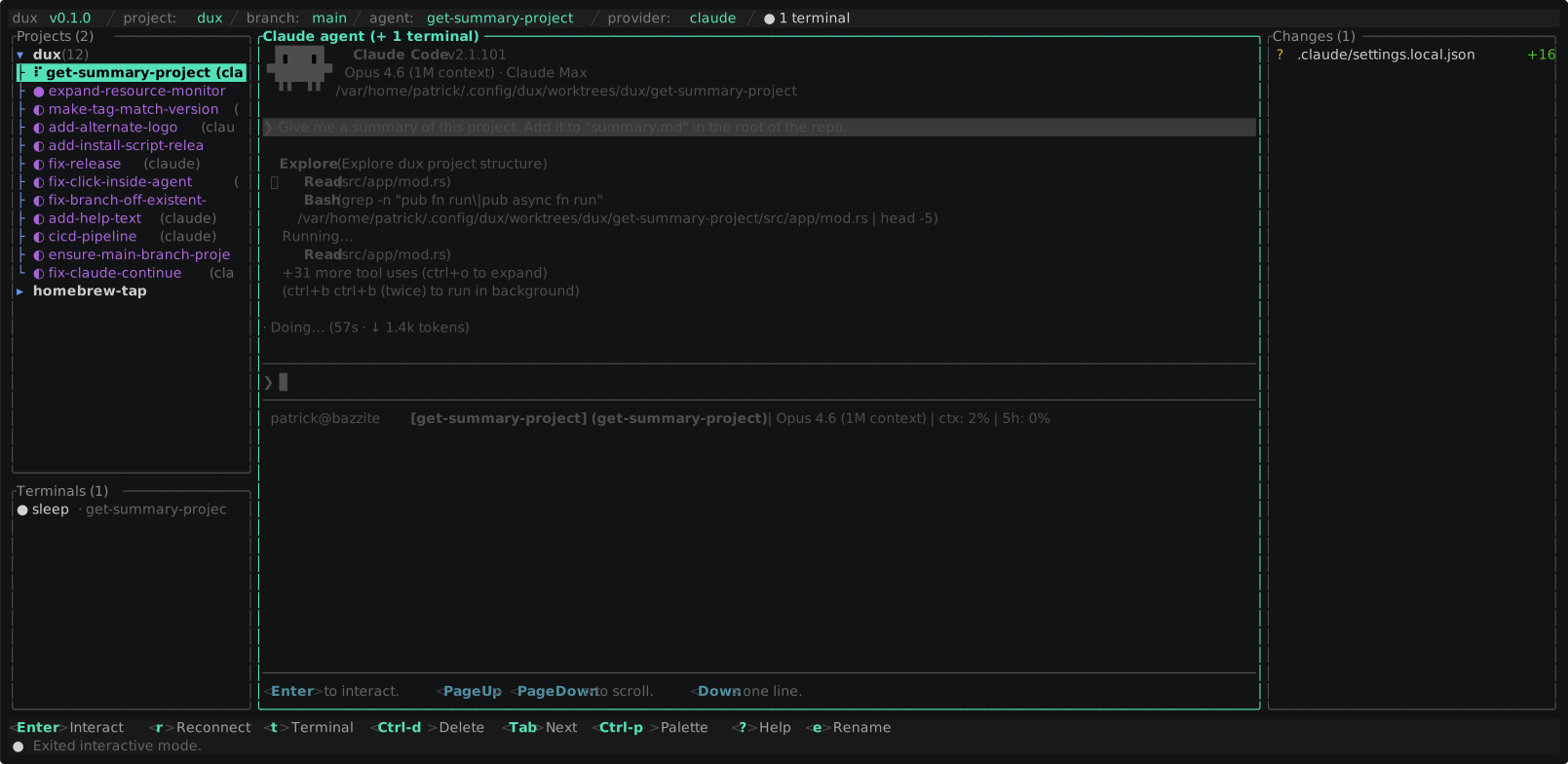
dux is a Terminal UI application that allows you to run multiple agents in parallel against the same codebase using git worktrees, with full companion terminals, macros, AI-generated commit messages, and more. It supports both claude and codex agents, and it has a lot of features that I think you’ll find useful.
Getting started
There are 3 ways to install dux and get started.
Homebrew (for macOS and Linux)
Using homebrew on macOS: simply run:
brew install patrickdappollonio/tap/duxThis would install and set up dux for you, as well as installing my personal tap with some other tools I’ve created over time.
Bash script
You can also use the following bash script to install dux on any system with bash and curl:
curl -sSfL https://github.com/patrickdappollonio/dux/releases/latest/download/install.sh | bashYou can customize the version used and the location where dux is installed (it’ll try ~/.local/bin by default) by setting the DUX_VERSION and DUX_INSTALL_DIR environment variables before running the script.
Manual installation
You can also download the binary directly from the releases page. Add the downloaded binary to anywhere in your PATH and make sure it’s executable.
Getting familiarized
dux has a lot of powerful cool little features worth mentioning. Most of them are already understood if you read the list above of features I wanted, but there are some details that are worth mentioning.
It runs the official claude and codex CLIs under the hood
dux is not a wrapper around the APIs, it’s a wrapper around the official CLIs. This means that you can use all the features of the official CLIs, as well as any tools that are compatible with them, without worrying about compatibility issues or missing features. You can also use dux to run any other CLI that follows a similar pattern, as long as you configure it properly.
There’s no ACP in the setup of dux so none of your own installed skills and flows are lost. I know some people have done great things with Garry Tan’s gstack to have a full-on hands-free workflow. I’ve heard of others using things like oh-my-claudecode to have a more powerful CLI experience. With dux, you can use all of those tools!
In dux, the config file is self-documenting
dux uses a config.toml that’s built into the core of the app as a self-documenting configuration file. Whenever we add new features, the code requires the developer to write a short documentation for each setting, that shows as a TOML comment.
This means you can truly get up and going with dux without having to read any documentation, since the config file itself is the documentation.
An example of what this looks like in practice is:
[editor]
# Preferred editor when opening a selected agent worktree.
# Supported values are matched against popular editor CLIs on PATH
# (for example: cursor, vscode/code, zed, antigravity).
default = "cursor"
Every keybind is customizable
Another pain point from some of the software I tested while I was looking around is that they would take a keybind that I use for something else, and I couldn’t change it. In my tmux setup, ctrl+a is my leader keybind yet one of the apps, rightfully so by the way, used ctrl+a to switch between agents.
Now don’t get me wrong: getting a keybind that won’t collide with your existing setup is nearly impossible. So, with dux you have full control of app-owned keybinds, like in the previous point, the config file is self-documenting, so you can easily see which keybinds are available and change them to whatever you want.
Here is a short example of some of the keybinds you can customize:
# -- Projects pane --
# Navigate down through projects, sessions, files, and lists.
move_down = ["j", "down"]
# Navigate up through projects, sessions, files, and lists.
move_up = ["k", "up"]
# Collapse or expand the selected project.
toggle_project = ["space"]
# Create a new agent session (worktree).
new_agent = ["n"]
# Focus the selected agent's output pane.
focus_agent = ["enter"]
# ... many more here!
Bring literally any CLI
Although dux ships with claude, codex, gemini and opencode support out of the box, you can configure it to run any CLI that follows a similar pattern. One of the soft requirements is for the CLI agent to support one-shot commands (we use this to generate AI commits) but other than that, as long as you can configure the command to run an agent, you can use dux to run it and have all the benefits of the app.
The config is quite clear:
[providers.gemini]
command = "gemini"
args = []
resume_args = ["--resume"]
oneshot_args = ["-p", "{prompt}"]
oneshot_output = "stdout"
install_hint = "npm install -g @google/gemini-cli"
forward_scroll = false
Since some AI agents also use one-shot commands to write to files instead of to the terminal, you can configure that too with the oneshot_output setting, which can be either stdout, stderr, or tempfile (and you can use {tempfile} in the oneshot_args to map it to a random temporary file that gets destroyed once the output has been fetched).
Unlimited number of companion terminals
For every agent, you can have an unlimited number of companion terminals: opening one is as simple as highlighting an agent in the Projects pane then pressing t (customizable, remember?). Terminals have their own mini-pane on the bottom left side of the screen and each one is named after their agent. If we detect an application running inside the terminal, we’ll use that name instead!
With that, you can quickly see if you’re running something important and if they’re actively running or paused/exited.
By default, t will get you straight to the last and only terminal opened, but you can keep creating more and more if need be. The only limit is your own machine resources and screen real estate! (Although the terminals pane is scrollable 😉)
Macros, cause typing the same thing over and over again is annoying
One thing that I find highly useful is having a generic macro system: I press a key combination and I can choose from a list of canned messages. I always find myself, for example, writing roughly the exact same prompt for creating pull requests or launching tests.
Now granted, you can also use a skill for this and then invoke it with /skillname, but you would have to manually copy or symlink these to each agent (and if you install a new one, making sure to get them there too). With dux, you can define macros in the config file and they’ll be available for all agents, no matter which provider they use.
Fork a session to try new things
If you have an agent running and you want to try something new without losing the current context, you can simply fork the session. This will create a new agent with the same file context as the original one, so you can experiment with different prompts or commands without worrying about losing progress or context in the original session.
Do note though that due to limitations to the CLIs themselves, we’re unable to extract the conversation so far, so the new session will start with a fresh conversation!
Command palette support for quick actions
I mentioned above how hard it is to create keybinds that don’t collide with other apps. To mitigate this and offer additional features, dux has a command palette that you can open with ctrl+p (customizable, of course) that allows you to quickly search and execute commands without having to remember their keybinds (or for commands that don’t even have a keybind to begin with!).
A couple of things, for example, that have no keybinding but are worth calling out:
resource-monitor, which allows you to see where your CPU and memory are being used, so you can quickly identify if an agent is hogging all your resources.duxuses around 36 MB of RAM when idle, while the agents often use 8 to 10 GB easily!kill-running, think like a task manager that allows you to kill any stuck agent or terminal application without having to open another terminal and runkillmanually.- Agent sorting in the projects pane by
name,updated dateandcreation date, which is quite useful when you have a lot of agents running and you want to quickly find the one you’re looking for. - Macro editing with
edit-macros, right inside the app. - Keybind and mouse input debugging with
input-debugging, which shows you the exact key presses and mouse clicks that are being registered by the app, so you can quickly identify any issues with your keybinds or mouse input. - Git diff line number toggling.
- Enable or disable the automatic GitHub PR info fetching.
- Force to create agents with names, instead of the randomized pet names (which are quite fun, but I understand that sometimes you just want to name them yourself and not have to deal with the randomness!).
Git support
The app will also show you a list of all the files changed by the agent. You can quickly open and browse diffs for each file, and with Space you can stage those files to then create an AI commit message.
You… You can also ask the AI Agent itself to do the Git housekeeping if you wish to do so: the app will react to any Git changes and update accordingly.
Screen change detection
Whenever the agent or your terminal are working, we offer an indicator in the agents pane so you can quickly and at a glance check if something is running or if everything is idle. This is especially useful when you have multiple agents running in parallel and you want to quickly see which ones are active without having to switch to each terminal or check the output panes.
We do this by leveraging the current’s app buffer changes: if there are changes (which is often the case when agents are “thinking” or “processing”) we expose that indicator. If the agent or terminal app goes static, the indicator stops.
GitHub integration
Another cool benefit here is that if you have the gh CLI installed and configured, we can use it to pull information about your current branch and whether if it’s connected to a Pull Request or not. If it is, we show you the PR title and state (merged, open, closed) right above (or below, configurable, remember?) the Agent pane. The agent’s name in the Projects pane also gets updated with GitHub colours: green for merged, purple for open, red for closed.
Crash recovery
If the app were to crash on you, reopening will allow you to continue the agent where you left off, thanks to their built-in session resume feature. The app will try to restore the previous state as much as possible, including the open agents and their contents!
Previewing it
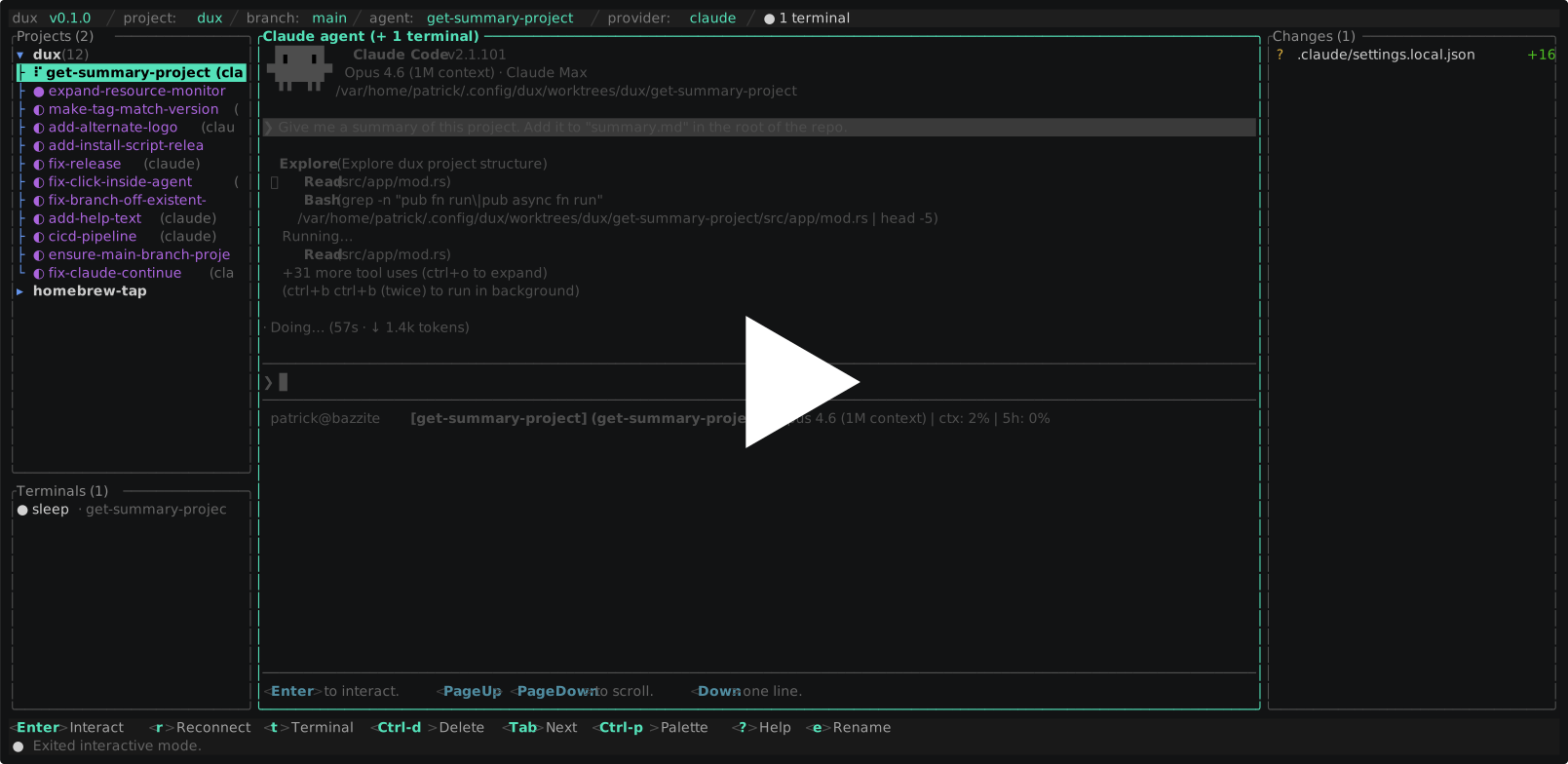
Here’s an ASCIICast that shows you how it looks in practice, with a couple of agents running in parallel, the resource monitor, the command palette, and more (opens in a new tab):
So there you have it! If you’re interested in trying it out, you can find it on GitHub. Any feedback, feature ideas, bug reports or contributions are more than welcome, so don’t hesitate to open an issue or a pull request!